Legal research is a necessary part of a legal practitioner's role, but it is also often time-consuming. Clio Library, powered by vLex and available through Clio Work, helps you reduce non-billable hours by streamlining the review and analysis of legal documents. It works seamlessly with Vincent in Clio Work to provide powerful research tools.
Get started with Clio Library
Clio Library is a legal research tool that provides access to a vast collection of legal and regulatory information. Regardless of your practice area, you can use the Clio Library to streamline legal research, gain a deeper understanding of legal issues, and find relevant documents from more than one hundred countries.
- In the top left corner of Clio Manage, pick Clio Work from the dropdown menu.
- Select Library from the left navigation panel.
Search and browse options
You can find documents in the Clio Library using a simple search, an advanced search, or by browsing content.
- Simple search
- Use the main search bar for broad searches or to access documents you already know.
- Browse content
- The Browse menu is an index of all Clio Library content, allowing you to filter by jurisdiction, content type (such as case law or legislation), courts, or categories of law.
- Advanced search
- You can use an advanced search for focused, detailed, or complex searches. You can add search terms to specific fields and define parameters to narrow your results.
Boolean operators and search syntax
When searching Clio Library, you can use Boolean operators and search syntax to make your searches more precise and get the best results possible.
| Operator or syntax | Purpose |
|---|---|
| a AND b | Tells the search engine to find both terms. |
| a OR b | Finds results with either or both terms. |
| a AND NOT b | Excludes all results with the second term. |
| "Abc" | Finds the exact term or phrase.; |
| [a b c] | Searches for the words in an automatic proximity of twenty words. |
| [a b c]/N | Customizes the proximity (e.g., [contract employee]/5 will find results where the words are within five of each other) |
Explore Clio Library document types
The Clio Library provides access to a wide range of document types to support your legal research. You can find these documents using the simple search bar, advanced search filters, or by browsing the content.
- Case law
The Clio Library has one of the largest global collections of case law available online. You can search by entering your terms into the search bar and applying the Cases filter, or by filtering through the Browse menu.
- Legislation
You can use Clio Library to access and research legislative documents. Next to the title, you will immediately see if it is in force or if the legislation has been repealed.
- Books and journals
The Clio Library offers an extensive collection of legal books and journals, offering authoritative guidance for your research. Select a book to view the table of contents.
- Official journals and news
You can access official journals or gazettes alongside legal news. The main source of news is the Newsfeed, which you can personalize with SmartTopics.
- Dockets
Dockets are court records that provide detailed information on litigation and its history. You can use dockets to access and analyze litigation history, case information, and filing trends.
- Practice notes and key number topics
Clio Library provides practical research guides (Practice Notes) and the Key Number System for organizing Canadian case law.
Navigate and filter search results
The results page is organised into three columns: the left for refining, the center for documents, and the right for additional metadata and actions.
Apply filters
Use the left-hand panel to set the boundaries of your research.
- General filters: Narrow by Content type, Jurisdiction, and Date.
- Jurisdiction-specific: These appear dynamically based on the region (e.g., Court, Reported series, and Category).
- Cited authorities filter: See only documents that cite a specific authority. Select Cited Authorities, check the relevant boxes, choose Any or All, and click Apply.
Refine the view
- Search within results: Use the field at the top of the filter panel to add new keywords to your currently filtered set.
- Reorder results: Sort by Most Cited, Most Recent, Relevance, or Most Visited.
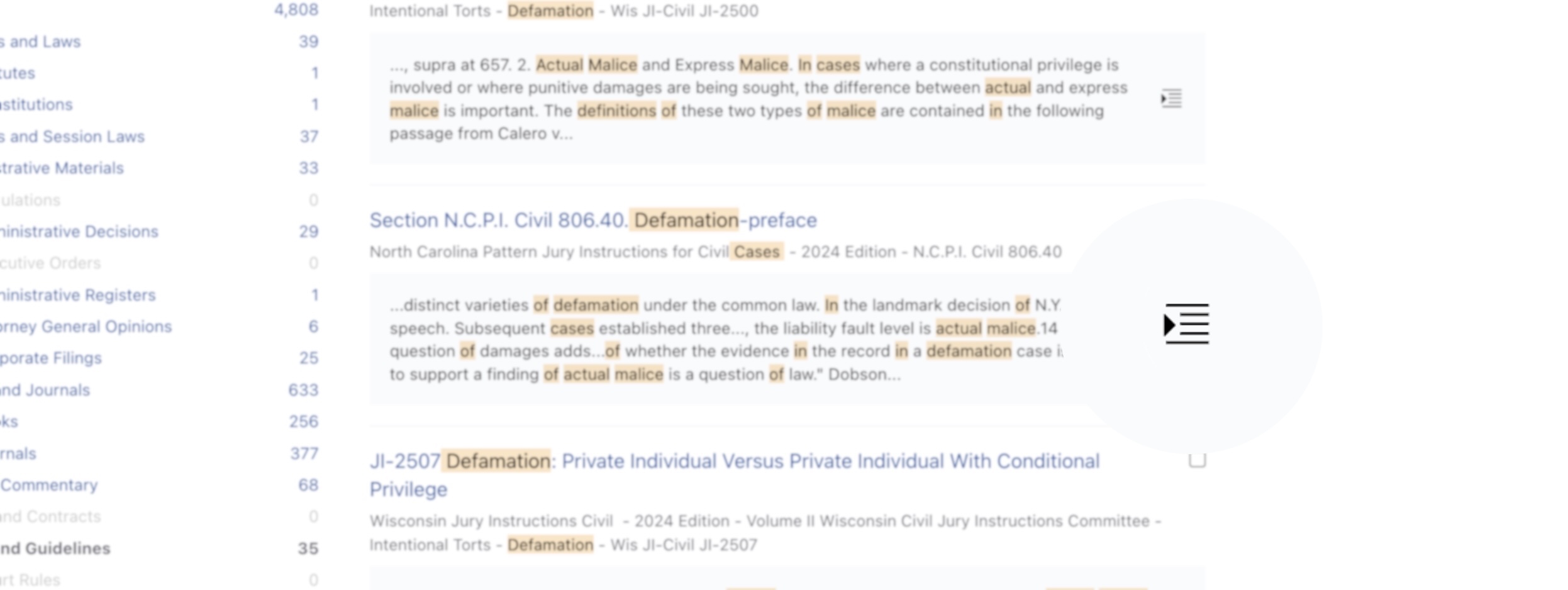
- Matching paragraphs: Next to the document preview, click the Show matching paragraphs icon shown below to see exactly how your terms appear in the text.
Sync and search your own documents
You can search across your own files by connecting a cloud storage service (such as Dropbox or Google Drive) to the Clio Library Cloud.
- Integrate: Sync your file hosting service to browse your personal documents within the Library.
- Search filters: Once synced, your documents will appear as a content type in the left-hand filter panel. You can include or exclude them from any search.
Sync your documents
- In the top-right corner of the screen, click the person icon.
- From the dropdown menu, select vLex Cloud settings.
- Toggle the switch for your preferred cloud storage service, then follow the prompts to authorise the connection.
- Your documents will be securely synced to Clio Library.
Manage and organise documents
With the Clio Library, you can manage your legal documents by creating folders, sharing research with your firm, and customising your viewing experience.
Create and use folders
Folders help you organise research projects by client name or general area of law. You can create a folder for each research project.
- Go to Folders in the left navigation panel.
- Click + New Folder.
- Name the folder and click Create.
- When viewing a document, click the Add to folder icon in the top right and select the appropriate folder.
Share documents
You can share documents with other firm users via email, social media, or reference managers. You can also use document links and ID Clio numbers to quickly find and share documents with other users. When sharing documents via email, recipients are notified via email: no-reply@vlex.com
Integrate with reference manager
Reference managers are valuable integrations for researchers who prefer to keep their citations in dedicated software.
- RefWorks: Selecting this option opens the RefWorks website in a new tab, where you can sign in to import the citation directly.
- RIS (EndNote): This option downloads a .ris file to your computer. You can use this file to upload the citation information from the Import References menu in EndNote Desktop or EndNote online.