Find a document Clio Manage
In Clio Manage, you can quickly search for a specific document using the global search bar. Global search produces results by searching both document names the full-text content of the documents. Global search is useful for finding documents when you cannot remember the document names, but you recall particular keywords associated with documents. Learn how to use global search to find a document.
Local searches are suitable when you're already in the main Document tab or the Document subtab for a contact or matter and you know the name of the document you are looking for.
- Go to the main Documents tab or the Documents subtab in a contact or matter
- Optional: Switch between viewing Files only or All files and folders, or use the Filters to select specific filter parameters.
- In the Search field, start typing part of the document name. The list of results will update as you type.
Download document PDF file in Clio Grow
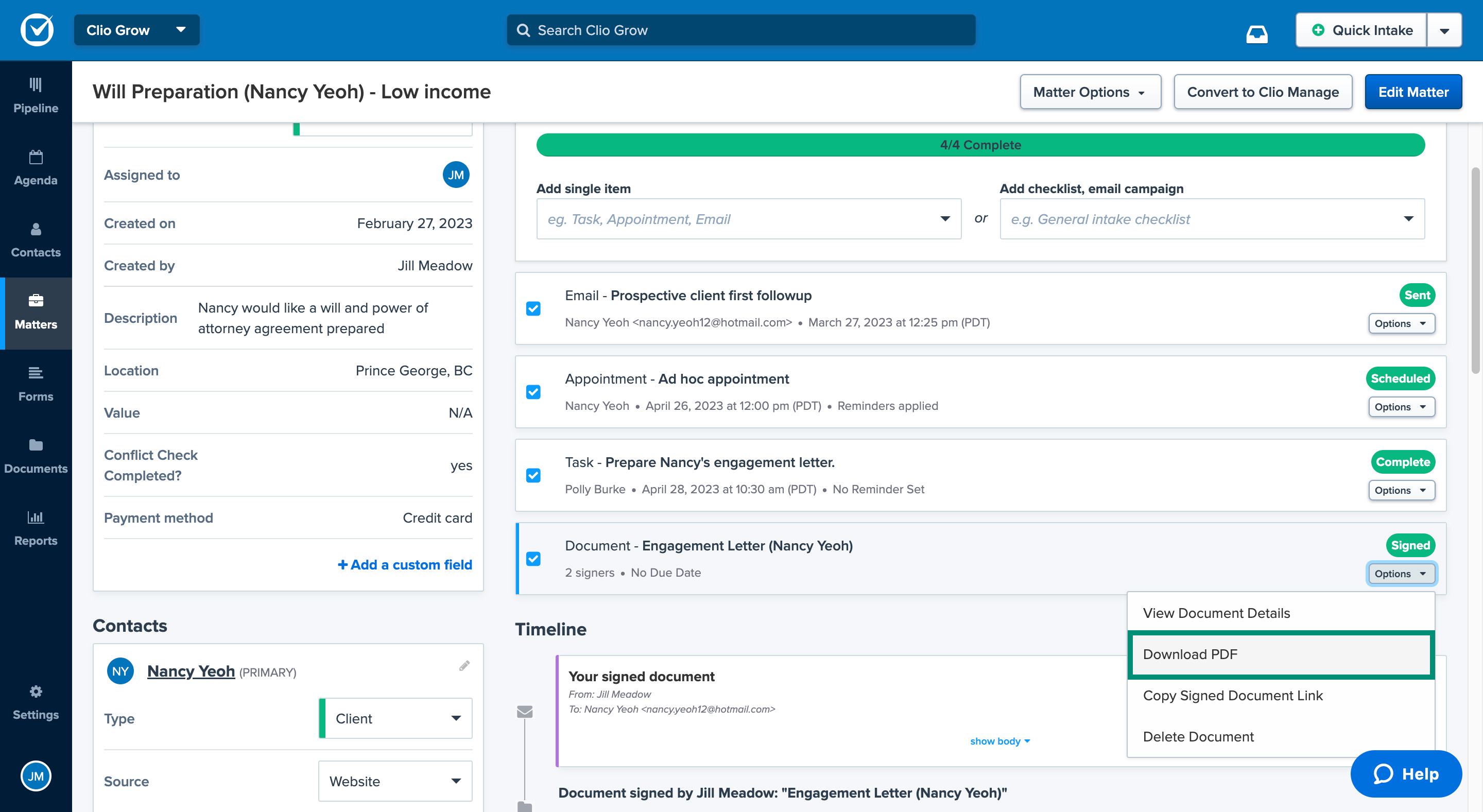
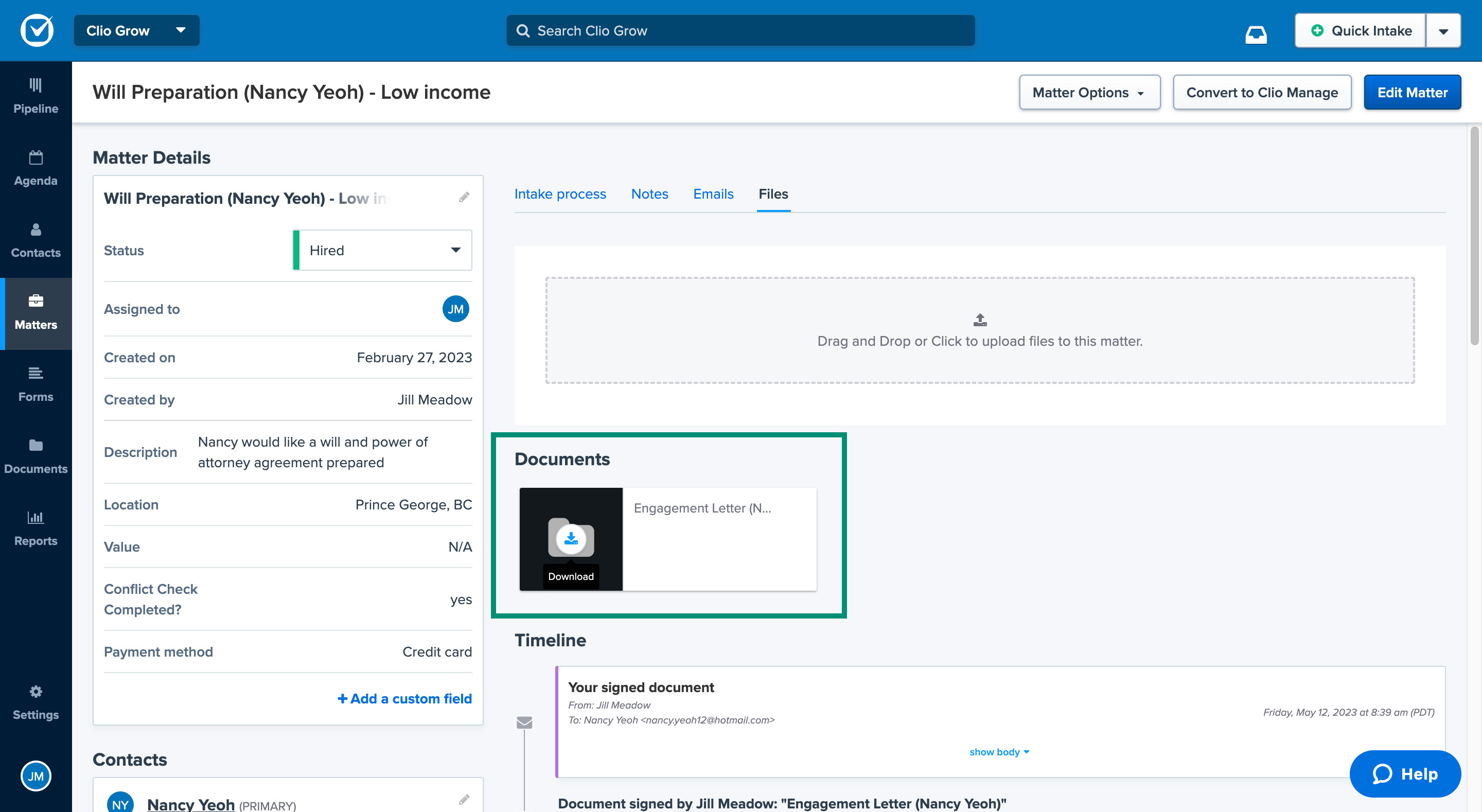
After all signees have signed the document, you can view and download the completed document as a PDF file from the matter’s intake process page, from the matter’s files page, or from the Documents tab.
- Go to the matter in Clio Grow.
- Find the document task under the Intake process section.
- Click the Options dropdown and select Download PDF.
- Go to the matter and select the Files subtab.
- Find the document under the Documents section.
- Hover over the white document icon on the black background and click Download.
- Go to Documents > Submitted.
- Click the document’s name.
- Click Actions and then select Download PDF.
View documents in Clio Manage
In Clio Manage, you can view documents directly in Clio Manage without having to download them to your computer.
- Go to the main Documents tab or the Documents subtab in a contact or matter.
- Click the Files only subtab to view only document files. You can also click All to view document folders and then click into the folders to find your document.
- Find the document in the table.
- Click the document's name to open it in Clio Manage.
Analyse documents in Clio Manage using Vincent
If you use Clio Work, you can ask Vincent, your AI legal assistant, to analyse a document that you uploaded to a matter or contact in Clio Manage.
- Go to the main Documents tab or the Documents subtab in a contact or matter.
- Click any document's name to open it in Clio Manage. You can also click the down arrow next to Download for a list of actions you can take.
- Click Analyze with Vincent.
Clio will redirect you to the workspace for the matter in Clio Work so that you can start your conversation.
Download files and folders in Clio Manage
In Clio Manage, you can download both document files and document folders. Document files will be downloaded in their original formats, and folders will be downloaded as .zip files.
Download files
- Go to the main Documents tab or the Documents subtab in a contact or matter.
- Click the Files only subtab to view only document files. You can also click All to view document folders and then click into the folders to find your document.
- Click the document's name to open it in Clio Manage.
- In the upper right corner, click Actions > Download.
- Go to the main Documents tab or the Documents subtab in a contact or matter.
- Click the Files only subtab to view only document files. You can also click All to view document folders and then click into the folders to find your document.
- Click Download for the relevant document.
Download folders
- Go to the main Documents tab or the Documents subtab in a contact or matter.
- Find the folder in the table.
- Click the down arrow next to Edit and select Download.