Vincent by Clio is available on mobile, ensuring that you always have your AI legal assistant with you. This also means that you have the ability to use every minute spent away from your desk can be used effectively. Vincent by Clio also ensures that information is available on the go.
Install Vincent by Clio on mobile
Vincent by Clio mobile is available via the Google Play Store or the Apple App Store.
- Open the Google Play Store or the Apple App Store.
- Search for “Vincent by Clio”, then download and install the app.
Log in
- Open the Vincent by Clio app.
- Click Sign in.
- If necessary: You may have to allow certain permission to the app.
- Enter the email address and password for your Clio account, or select one of the other authentication options.
- Click Sign in.
Navigate Vincent by Clio on mobile
While Clio Work with Vincent is well-suited for comprehensive tasks like deep research or drafting complex documents, Vincent by Clio on mobile is built for agility, allowing you to find answers on the go. You can quickly start new conversations, view old ones, save these conversations to existing matters, create documentation drafts, and more.
- Access your previous conversations: Tap the hamburger menu (three horizontal lines) in the top left corner to open a panel with a list of your previous conversations.
- Visit the mobile app settings: Tap the hamburger menu (three horizontal lines) in the top left corner to open the navigation panel, then tap Settings.
-
Access the actions panel: Tap the + in the prompt box to access the actions panel. From this panel you can:
- Access your camera to take a picture of and upload documents.
- Upload photos or files from your mobile phone.
- Ask research questions—Vincent accesses the Clio Work Library to answer research questions.
- Ask questions in incognito mode—(for users who use Vincent as a standalone product) Vincent does not save these conversations, meaning you have full access to Vincent’s capabilities but without adding it to your list of conversations.
- Associate conversations with a matter (for users with Clio Manage accounts).
- Provide feedback.
Start a new conversation
- From your home screen, click the create (page and pencil) icon in the top right corner. This opens the prompt text box.
- Optional: Tap the + in the prompt box for options like adding a document or choosing a matter to associate the conversation with. See those options here.
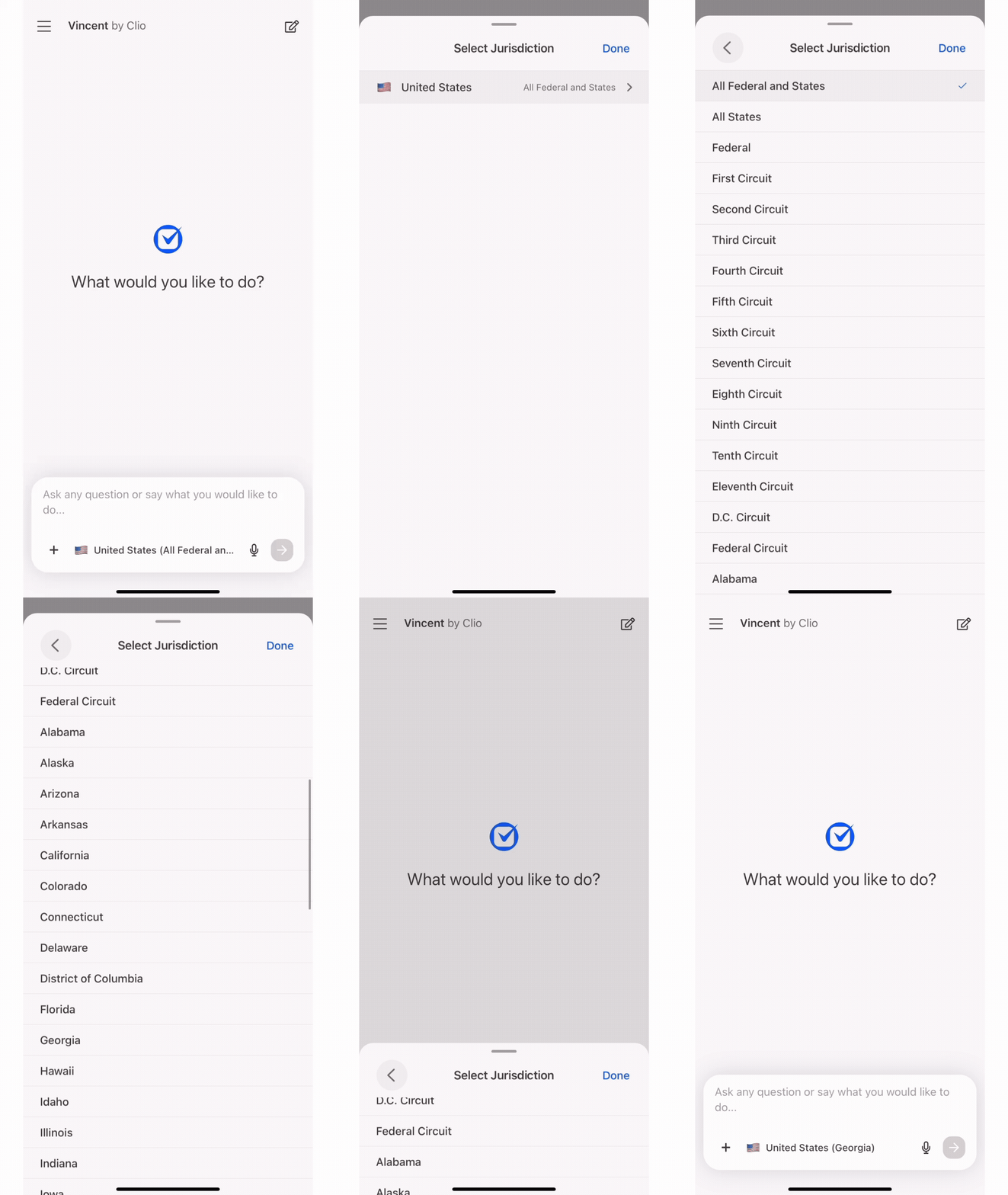
- Optional: Tap the jurisdiction to change it to a different jurisdiction.
- In the text box, type your question or use the microphone icon to use the voice input to dictate your question.
Tip: While you cannot directly access Vincent workflows in the same way as you do in the web app, you can achieve similar results by phrasing your query in a way that describes what you are trying to achieve, e.g., “Build and argument against a plaintiff who failed to mitigate damages in this breach of contract matter.”
Enable voice input
To use the voice input function, grant permission to enable dictation and/or voice conversation. Learn more about how your voice input data is processed.
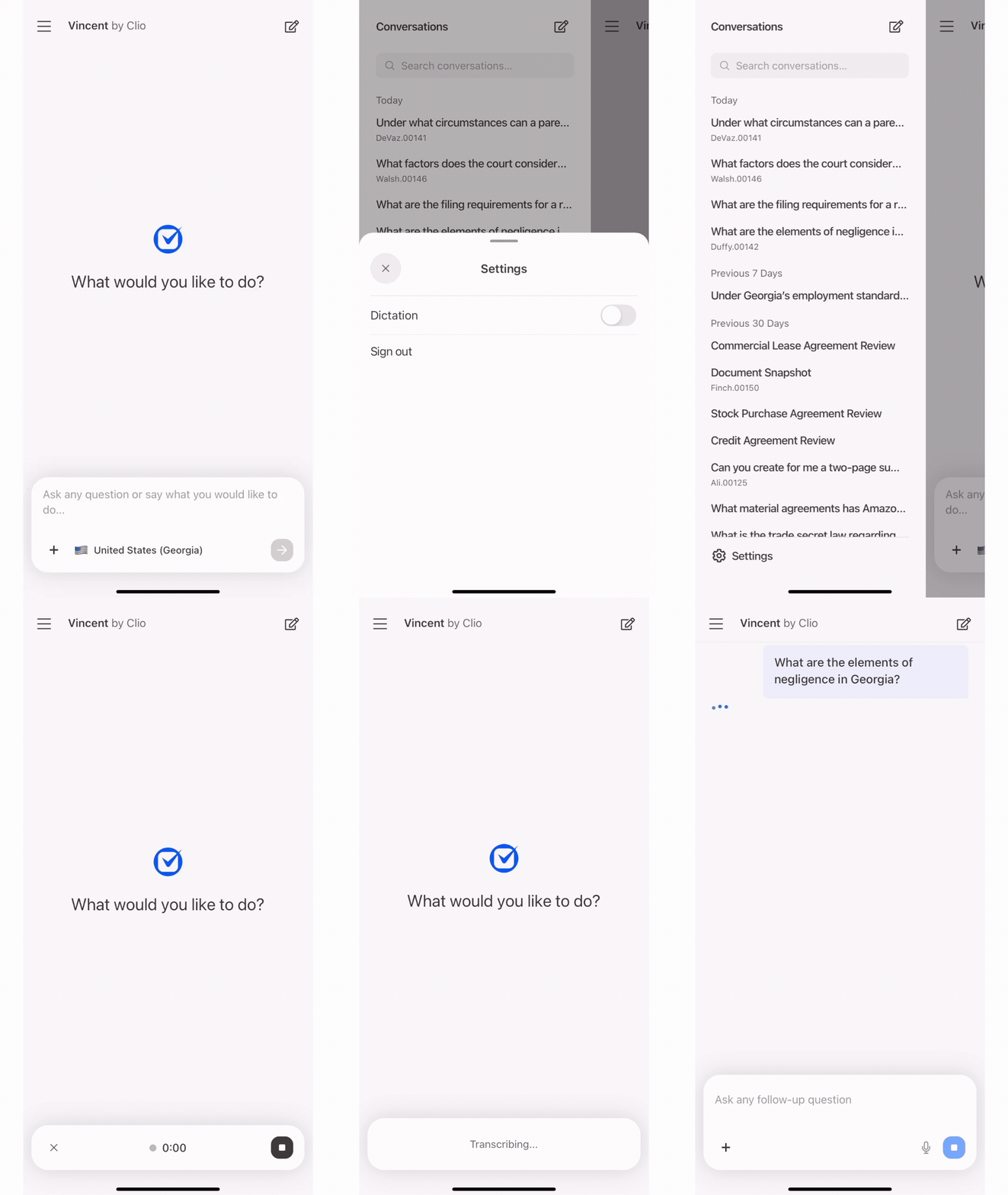
- Tap the hamburger menu (three horizontal lines) in the top left corner.
- Tap Settings.
- Toggle Dictation and/or Voice Conversation to on.
If you want to use voice input but have not yet granted these permissions, you will be prompted to do so when you try to use the microphone option while in a conversation.
- While in a conversation, tap the microphone or voice input icon.
- The voice input permissions panel will appear.
- Toggle Dictation and/or Voice Conversation to on.
- Click Continue.