You can manage the documents and folders you add to Clio Manage by editing details, copying files, moving items to new locations, and updating versions. In Clio Grow, you can edit the due date of a sent document.
Tip: You can also download documents in Clio Manage and Clio Grow. Learn more here.
Edit sent document due date in Clio Grow
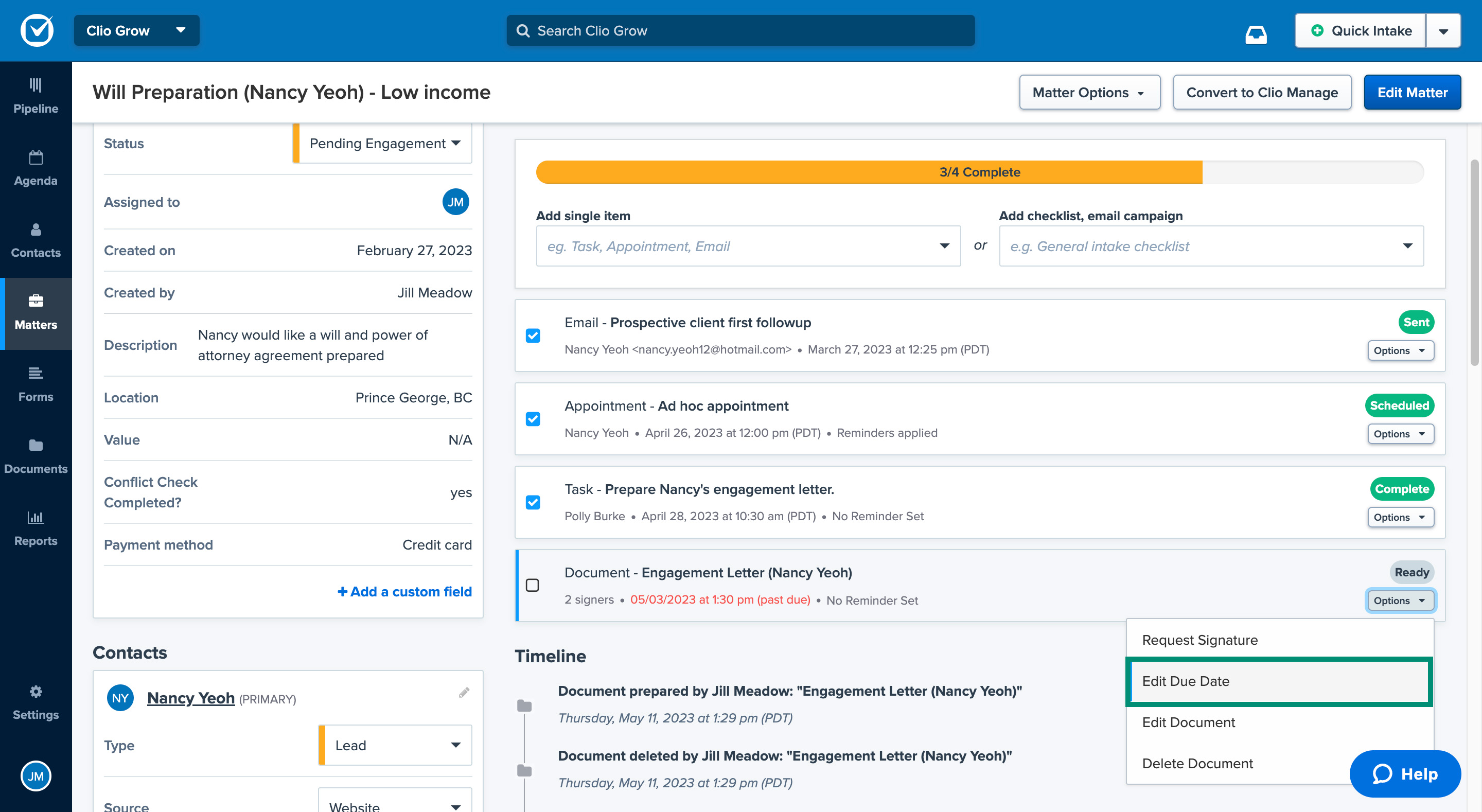
Once a document has been sent out for eSignatures in Clio Grow, you can still edit the original due date. Follow the steps below to learn how to do this.
- Go to the matter in Clio Grow.
- Find the document task under the Intake process section.
- Click the Options dropdown and select Edit Due Date.
- Select a new date and then click Update Due Date.
Copy a file in Clio Manage
You can copy a document to quickly duplicate a file for use as a template or as a starting point for a new document. The copied file defaults to the same folder as the original and is named, for example, [COPY] original file name.
Important: Medical records cannot be copied.
Note: When you copy a file, the new file includes the content and metadata of the original file, and inherits the destination folder's permissions. The copy does not include audit history, version history, sharing activity metadata, or e-signature activity metadata.
- Go to the main Documents tab or the Documents subtab in a contact or matter.
- Find the document in the table. You may need to click into folders.
- Click the down arrow next to Download and select Create a copy.
- Update the File name and the Received date.
- Optional: Select a Matter, Destination folder, and Document Category.
- Click Create.
Edit file or folder details in Clio Manage
Note: The edit functionality in these steps is limited to editing file or folder details. If you need to edit the document itself, make your edits on your computer and then add a new version to Clio, or edit the document using Clio Launcher or Clio Drive.
- Go to the main Documents tab or the Documents subtab in a contact or matter.
- Find the document in the table. You may need to click into folders.
- For a folder, click Edit, or for a file, click the down arrow next to Download and select Edit details to change folder or file details.
- Make your changes and then click Save.
Move files or folders in Clio Manage
After adding a new file or folder to Clio Manage, you can move it from its current location to a new location if necessary. You have the option to move files or folders individually or in bulk.
- Go to the main Documents tab or the Documents subtab in a contact or matter.
- Find the document or folder in the table. You may need to click into folders.
- Click the down arrow next to Edit (for a folder) or next to Download (for a file), and then select Move.
- Navigate to and select the folder where you want to move the document or folder.
- Click Move to this folder.
- Go to the main Documents tab or the Documents subtab in a contact or matter.
- Find the document or folder in the table. You may need to click into folders.
- Check the box(es) next to all the documents and/or folders you want to move.
- Click Actions at the top of the table, and select Move.
- Navigate to and select the folder where you want to move the document or folder.
- Click Move to this folder.