Drafting legal documents is a key component of Clio Draft. With the Clio Manage and Clio Draft integration, you can easily draft legal documents by populating your Clio Manage client and matter data. Once the documents are drafted and pre-filled, you can send them out for electronic signatures. Learn more about Clio Draft eSignatures here.
Tip: Before drafting legal documents, use the form template feature to create court forms with pre-filled information, making it easier to populate client and matter data when drafting your documents.
Draft new documents
You can begin drafting legal documents in either Clio Draft or Clio Manage, drafting proceeds through three distinct stages: document selection, information population, and final review.
Understanding your document types
Clio Draft supports several document formats that you can use:
-
Court forms: These are blank court forms available in Clio Draft with fillable areas for adding relevant information. Clio hosts a library of US court forms as well as court forms from Ontario and British Columbia.
If you visit Library > Court forms and select a jurisdiction, but cannot find a particular court form you need, click Request a form to send a request to Clio to have the form added. - Form templates: These are pre-filled court forms you have saved. They are useful for partially filling out forms you regularly use (e.g., with your firm's name and address).
- Word templates: Templates built using the Microsoft Word Template Builder.
- Sets: Groups of forms and/or templates you compile for repeated use across similar matters.
Overview of the drafting workflow
When drafting, you only need to provide case information once. Clio Draft will then use the information to populate fields across all selected documents.
- Stage 1: Selection: You choose the set of forms or templates to use.
- Stage 2: Population: You provide case and contact information on the populate page. Clio Draft will use the information you provide here to fill in the required fields.
- Stage 3: Review: You review the generated documents, make final edits, and prepare for saving or eSignature.
Stage 1: Select your documents
You can begin drafting documents in either Clio Draft or Clio Manage. Sets are groups of forms, templates, or Word templates that you have compiled for reuse in a specific matter type or stage.
- In Clio Draft, navigate to Library and select the Sets, Court forms, Form templates, or Word templates subtabs.
- Identify the set of forms, individual forms, or templates that you need. You can use the search bar for each tab to search by form number, form, or template name.
- Click Add to add a set, form, or template to your list of documents.
- The documents will appear in the selection pane on the right. You can add up to 20 documents.
- Optional: In the selection pane, you can reorganize the order of documents by clicking and dragging them. You can also click the delete (trash can) icon for a document to remove it from the list of selected documents.
- In the same selection pane, click Draft new documents to proceed to the next stage.
- In Clio Manage, go to a matter’s Documents subtab.
- Click New and then select Create document in Clio Draft.
- In the modal, click Continue to Clio Draft.
- Clicking Continue to Clio Draft will also sync this matter from Clio Manage to Clio Draft. If you have already synced this matter, this action will update any changes made to fields and contacts.
Stage 2: Create document set and provide information
The populate page is where you provide case-specific information. This information is used to populate the various parts of your documents.
Tip: When adding a document title, choose a naming convention that makes it easy to find your documents. One option is to use the client’s name, the relevant practice area, and information about the documents, e.g., Smith—Divorce—Preliminary Pleadings.
Note: You can use contact custom fields to ensure that information added to the custom field is readily available when you draft documents in Clio Draft. You can also leverage related contacts added to a matter to enable Clio Draft to select the correct contact for the relevant role card automatically.
- Ensure correct templates are selected and select a matter.
- If you select a matter created in Clio Manage, click Refresh again to ensure that Clio Draft uses the most up-to-date information, and then click Next.
- You can also create a new matter in Clio Draft. Click the Choose a matter field > Create a new matter. Matters created in Clio Draft will not sync to Clio Manage.
- Click Auto-fill document(s).
- On the populate page, you can add/edit a document set title and choose a matter.
- Left-hand panel: This panel shows the documents in your set and the Cards (sets of related information) used in them. You can use this panel to navigate to a specific card or document.
- Card status: In the title of each card, a status tag indicates how many fields are still blank or if the card’s information is complete. The left-hand panel updates with a checkmark or the number of unfilled fields as you add or remove information.
- For each card, complete the required fields.
-
Intelligent field mapping will pull information from the regular and custom fields in Clio Manage into the relevant card fields. Review the fields in each card for accuracy and edit as needed using the Change or Use Clio Manage data options below the field.
Note: Each of these auto-filled fields also provides the information about where the data came from below the field making the review process easy. -
Role cards (Contacts): Cards that pertain to a contact or other entity (like a court or organization) allow you to choose the contact or company.
- Click the Attach contact field.
- Select an existing contact or click New Contact to create a new contact in Clio Draft. Contacts added in Clio Draft will not sync to Clio Manage.
-
- Once complete, click Generate document(s).
Review and manage documents
This section guides you through the final review stage and subsequent management actions, such as editing, renaming, and adding documents.
Stage 3: Review and finalize documents
The information you provided in the various fields of the cards will populate into the relevant locations in your documents. You can now review the forms and make any necessary additions or edits. For Word templates, you can preview the document and toggle highlighting off to remove field highlights.
- Review each of the court forms.
- Select the court form you want to review. The information entered in the previous stage will appear in the appropriate fields in a blue font. The blue font is a visual aid. When you download or save the documents, the text will be black.
- Purple fields: Fields highlighted in purple are linked to fields that will automatically insert information entered on the Populate page. If you fill in a purple field, the data in that field will always populate when you draft a document from this form template. Entering text on the Populate page will not overwrite purple fields.
- Blue fields: Fields highlighted in blue are unique to the matter. You will enter this information after you generate the form template.
- Unlink a field: If you manually edit a field that was automatically added, the field will unlink from the populate page and turn grey. To relink it, hover over the unlinked field, then click the Reset to initial value icon.
- Add text boxes: If you need additional text boxes or more space, click Add custom field from the edit banner, select the document where you want to add the text, and then start entering your text. You can also click the box to move it, change the text size, or delete the box.
- Select the court form you want to review. The information entered in the previous stage will appear in the appropriate fields in a blue font. The blue font is a visual aid. When you download or save the documents, the text will be black.
- Review Word templates.
-
Fields: Word templates will highlight the fields in the document. Review this information. You cannot edit this document directly from this page; return to Stage 2 to correct information.
Important: If you return to the populate page (Stage 2) and edit a linked field, the new information will update the linked fields only (those with a blue field background). If you unlink a field in Step 1 (those with a gray background), it will not be updated.
-
When your document set is finished, you have the following options:
-
Click Save to Clio Manage to save all the documents back to the matter in Clio Manage.
Note: This option is only available if you selected a matter from Clio Manage in Stage 2. - Click Download to download a PDF or .docx file of each document, or a zip file containing all the documents.
- Click Esign to proceed through the electronic signature tool. Learn more about eSignatures here.
Map related contacts for matters in Clio Draft
When drafting documents in Clio Draft and when you are at the stage in the process where you provide the information that Clio Draft will use to generate the documents (i.e., the populate page), the title of each role card (i.e., those cards that you can select a contact for) can be leveraged to ensure that relevant information from Clio Manage is readily available in Clio Draft. When you add related contacts to a matter in Clio Manage and correctly specify the relationship, Clio Draft will automatically preselect the related contact to the relevant role card during the drafting process.
- While drafting a document, take note of the exact title of a card on the Populate page.
- Add this information when you create a new matter or edit an existing matter to ensure the right contact is automatically selected for the relevant card.
Custom field sync limitations
Clio Manage supports 12 custom field types, but only five of these field types sync to Clio Draft.
- Supported field types for syncing: Checkbox, Date, Picklist, Text (Multi-Line), and Text (One-Line).
- Unsupported field types: Contact Select, Matter Select, Integer, and Time.
Map Clio Manage contact custom fields in Clio Draft
In Clio Draft, some court forms may have fields related to contacts that are not part of the standard set of fields available in Clio Manage. If you use Clio Manage and Clio Draft and you regularly use a form in Clio Draft with fields that are not part of the standard set, you can create a custom field in Clio Manage to help you streamline how you generate these documents. Once you create the contact custom field in Clio Manage, you can capture the contact-related information in Clio Manage and subsequently have it be available when you draft documents in Clio Draft. This information will then quickly be pulled into the right field in Clio Draft when you attach a contact to a role card.
For example, as you are drafting documents in Clio Draft and at stage two in the process where you provide the information that Clio Draft will use to generate the documents (i.e., the populate page), you may often see a card with a title of Attorney. When you select a contact for this card, most details like name and address will be added automatically because these fields form part of the standard set of fields available in Clio Manage. However, the State Bar Number field that often appears in this Attorney card may always be empty, requiring you to manually type this information every time you generate a document. If you create a custom field for the State Bar Number, you can add the contact's state bar number into the field so that it will be automatically added the next time you select this contact for this card while drafting documents in Clio Draft.
- While drafting a document set and while at stage two of the process where you provide the information that Clio Draft will use to generate the documents (i.e., the populate page), take note of the exact name of a field in any role card. This process is case-sensitive.
- Create a new contact custom field. When specifying the Name field, use the exact name of the field from the role card in Clio Draft.
When creating contact custom fields for use with Clio Draft, follow these naming guidelines to avoid breaking the field mapping:
- Do not use symbols in field names.
- Do not use camelCase formatting (e.g., avoid "Client1", "ClientOne", or "1stChild").
- Do not rename a custom field in Clio Manage after it has been synced to Clio Draft. Doing so will break the mapping.
Synced fields cannot be deleted from Clio Draft, even if they are deleted from Clio Manage.
Custom field sync limitations
Clio Manage supports 12 custom field types, but only five of these field types sync to Clio Draft.
- Supported field types for syncing: Checkbox, Date, Picklist, Text (Multi-Line), and Text (One-Line).
- Unsupported field types: Contact Select, Matter Select, Integer, and Time.
Manage drafted documents
You can edit, rename, and add new documents to drafted documents through the Document sets, Documents, or Matters tabs.
Edit drafted documents
- Access the documents via Document sets or Documents in Clio Draft, or Matters in Clio Manage.
-
Via Clio Draft:
- Go to Document sets or Documents.
- Search for the drafted documents.
- Click the Actions dropdown and then select Regenerate.
-
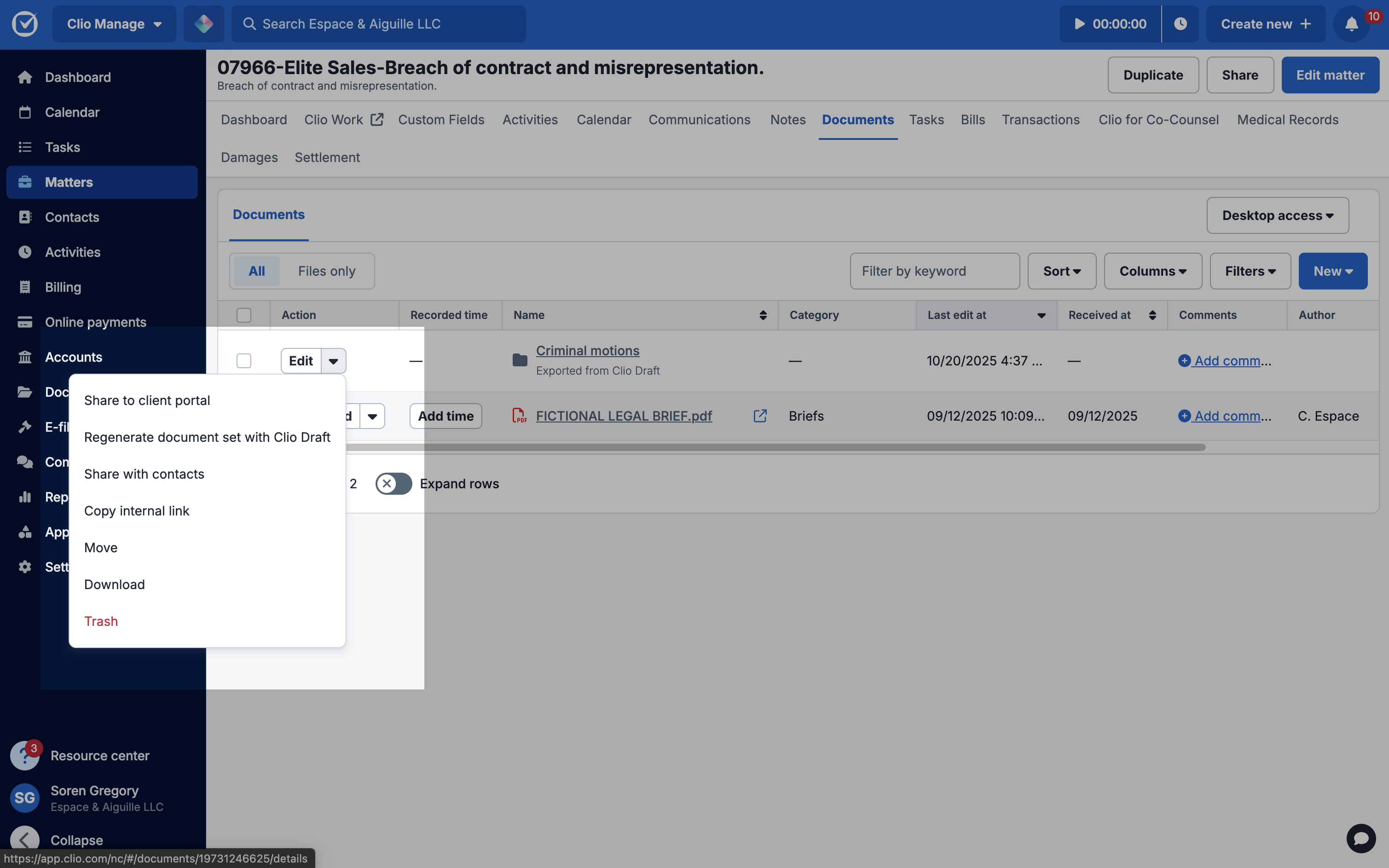
Via Clio Manage:
- Go to the matter in Clio Manage.
- Click the Documents sub tab. Find the folder Exported from Clio Draft.
- Under Actions, click the arrow and select Regenerate document set with Clio Draft.
-
Via Clio Draft:
- Continue through the document drafting process to make your changes.
Add or delete documents
You can add additional documents to your set or remove documents you no longer need.
- In Clio Draft, access the document set via the Actions dropdown and select Regenerate.
- Continue through the document drafting process until you reach the drafting/preview screen (after the Populate page).
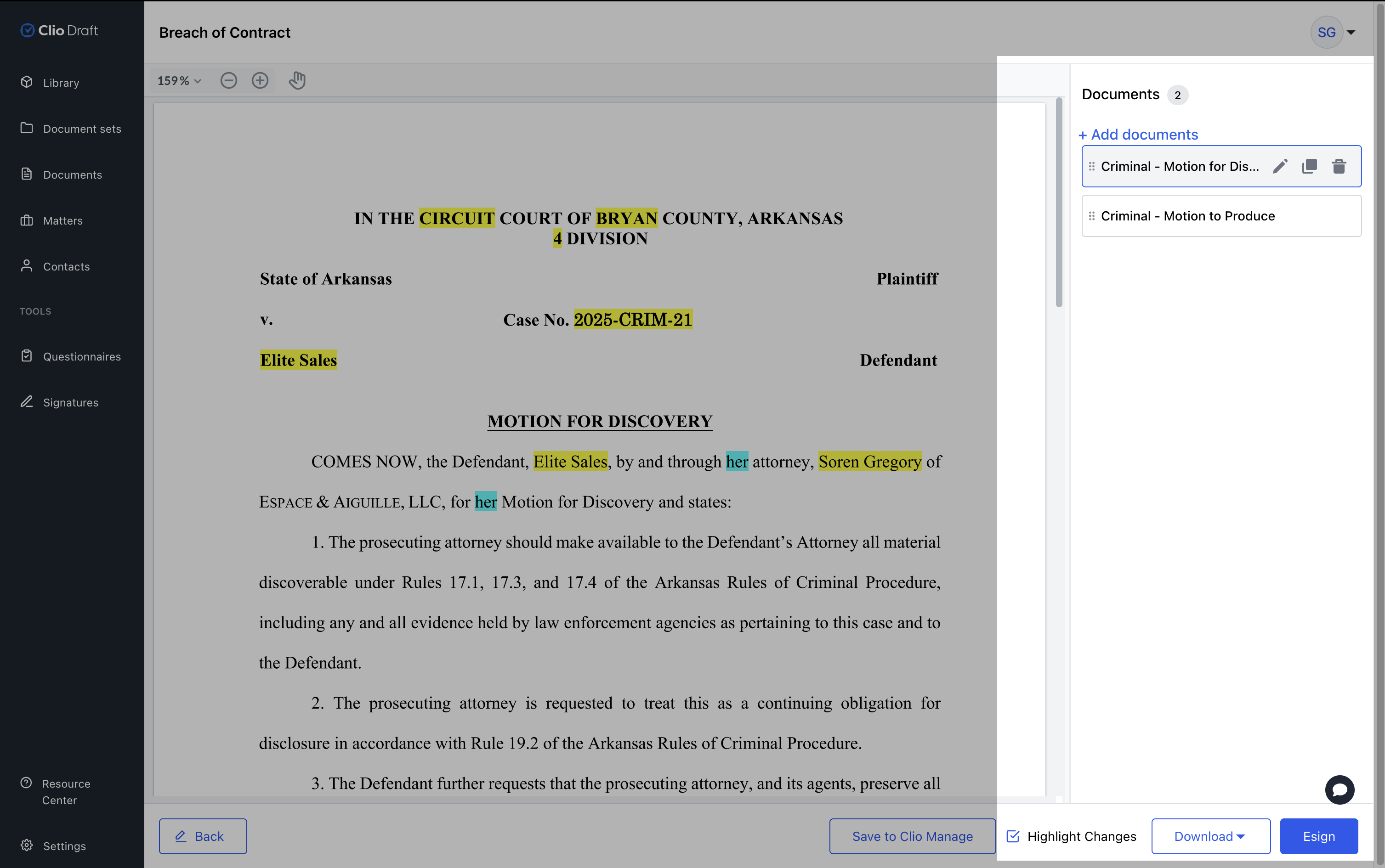
- To add documents, click + Add documents in the Documents pane shown below. Select additional sets, forms, or templates from your library, and then click Confirm selection.
-
Optional: To duplicate a document, hover over the document name in the Documents pane and click the Duplicate icon. Enter the number of copies you want to create and then click Duplicate.
Note: Once a copy is created, it becomes an original document. Changes made to the original document that it was duplicated from will not appear in the copy or vice versa. - To delete a document, hover over the document name in the Documents pane and click the trash icon. Click Delete to confirm.
Rename documents
- To rename documents you have drafted in Clio Draft, access the document set via the Regenerate action shown above.
- Continue through the document drafting process until you reach the drafting/preview screen.
- In the selection pane, hover over the document name and click the pencil icon next to a document’s name, as shown above.
- Enter a new name and then click Rename.